¶ Introduction
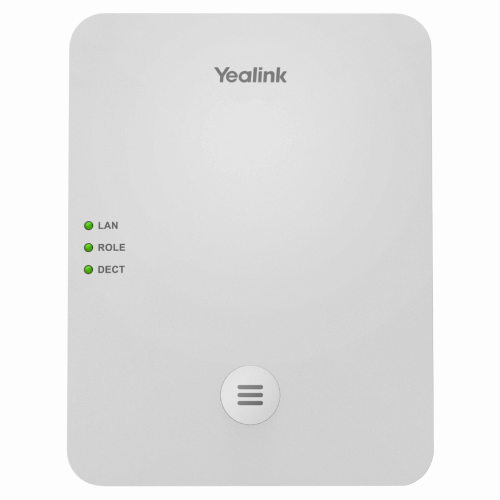
This Configuration Guide is written as a general guide on how to configure the Yealink DECT IP Base Station W75 and the handset W74H to work with PBXware 7.3.
¶ Requirements
¶ Identifying Device Model
To start and successfully complete the registration of the Yealink device, you need to know which device model to set up.
On the back of each Yealink device, there is model information that you should check. Although various device models can have exactly the same requirements and installation procedures, device models can also have significantly different requirements and installation procedures, so that is why it is important to know the model you own which results in you setting up the device successfully.
¶ DECT IP Base Station Firmware
- Make sure that the device is loaded with an appropriate firmware version, 175.85.0.5.
- To find out the firmware version of your Yealink device model, open a new browser window and enter your device's IP address in order to access the device's web administration interface login screen. Example:
http://192.168.1.22. - Log in to the device's web administration interface with your username and password. Please note that the factory default login details are as follows: username is admin and password is admin.
¶ DHCP Server
Fully configured and operational DHCP server.
¶ PBXware Version
PBXware version 7.3
In order to find out the PBXware version:
- Log in to PBXware
- Navigate to Settings: About.
On the top of About page, you may see a code similar to this one PBXware Edition: Multi-Tenant Release: 7 (41a4f0e6) Running: 18.15.0-gc-ab72ab93, Proxy v7 (231c5f3), API: 7, libmemcached version: 1.0.18, where Release denotes the current version of your PBXware.
¶ Installation
This section describes how to install and connect the device to the electrical power and data network as well as how to apply factory settings.
The following topics are covered:
- Power Adapter
- Power over Ethernet (PoE)
- Factory Settings
¶ Power Adapter
Connect the Network and Power
- Connect the DC plug on the power adapter to the DC port on the device and connect the other end of the power adapter into an electrical power outlet.
- Connect the Ethernet cable between the Internet port on the device and the network port on a router or switch to access LAN.
NOTE: If you are using Power over Ethernet (PoE), you don't need to connect the AC adapter. Make sure that the Ethernet cable and router or switch is Power over Ethernet (PoE) compliant.
¶ Power over Ethernet (PoE)
Connect the Network (only)
Using a regular Ethernet cable, your device can be powered from a Power over Ethernet (PoE) compliant router or switch.
- Connect the Ethernet cable between the Internet port on the device and an available port on the in-line power router or switch.
NOTE: If you are using Power over Ethernet (PoE), you do not need to connect the AC adapter. Make sure that the Ethernet cable and router or switch is Power over Ethernet (PoE) compliant.
¶ Find the Device's IP Address
Find out the Yealink phone's IP Address.
- Press the OK button on the handset.
- Go to the Status menu.
- Go to the Base submenu.
The IP address will be displayed on the top of the display.
¶ Reset to Factory Settings
This step is not required for brand new out-of-the-box devices, however, if the device has been already used then it is a must.
- Open a new browser window and enter your device's IP address in order to access the device's web administration interface login screen. Example:
http://192.168.1.22 - Log in to the device's web administration interface with your username and password. Please note that the factory default login details are as follows: username is admin and password is admin.
- Click the Upgrade tab.
- Click the Reset button in order to reset the device to factory settings. A device will reset to the factory settings and reboot.
- Wait some time for a device to reboot.
NOTE: Do not unplug or remove power from the device while it is updating firmware and configuration..
¶ Registering a Device
This section describes how to identify the Yealink device model, requirements that must be met, and how to register a device using Manual configuration or Auto provisioning.
The following topics are covered:
- Manual Configuration
- Auto Provisioning
¶ Manual Configuration
This section describes how to set UAD settings, create the PBXware Extension, and register the device.
The following topics are covered:
- UAD Settings
- Creating an Extension
- Registering a Device
¶ UAD Settings
1. Log in to PBXware's web administration interface
- Open a new browser window and enter the PBXware IP address to access the administration login screen. Example:
http://192.168.1.10 - Log in to PBXware with your e-mail address and password.
2. UAD settings
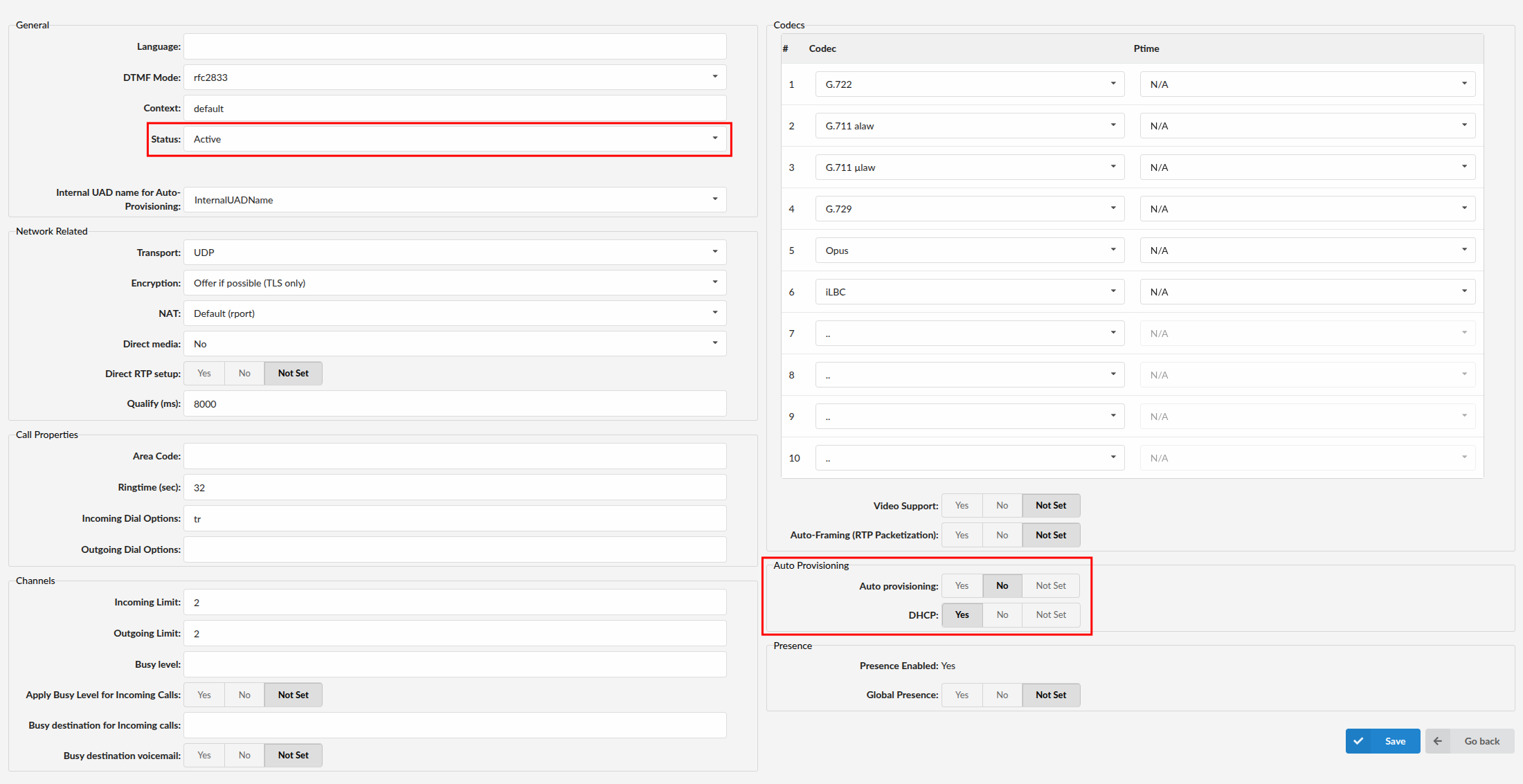
- Navigate to Settings > UAD.
- Ensure that the Yealink W75 UAD is enabled. To check the UAD status, click the Edit icon corresponding to the Yealink W75 phone.
- Verify that Status is set to Active, Auto provisioning is set to No, and DHCP is set to Yes.
- Click the Save button.
¶ Creating an Extension
1. Add Extension
-
Navigate to Extensions, then click Add Extension.
-
The standard options window will open.
-
Select the Yealink W75 phone model from the UAD dropdown menu.
-
Select the Location: Local or Remote.
- Local is for all Extensions registered on the LAN
- Remote is for all Extensions registered from remote networks, WAN, Internet etc.
-
Click the Next step button.
2. Extension Values
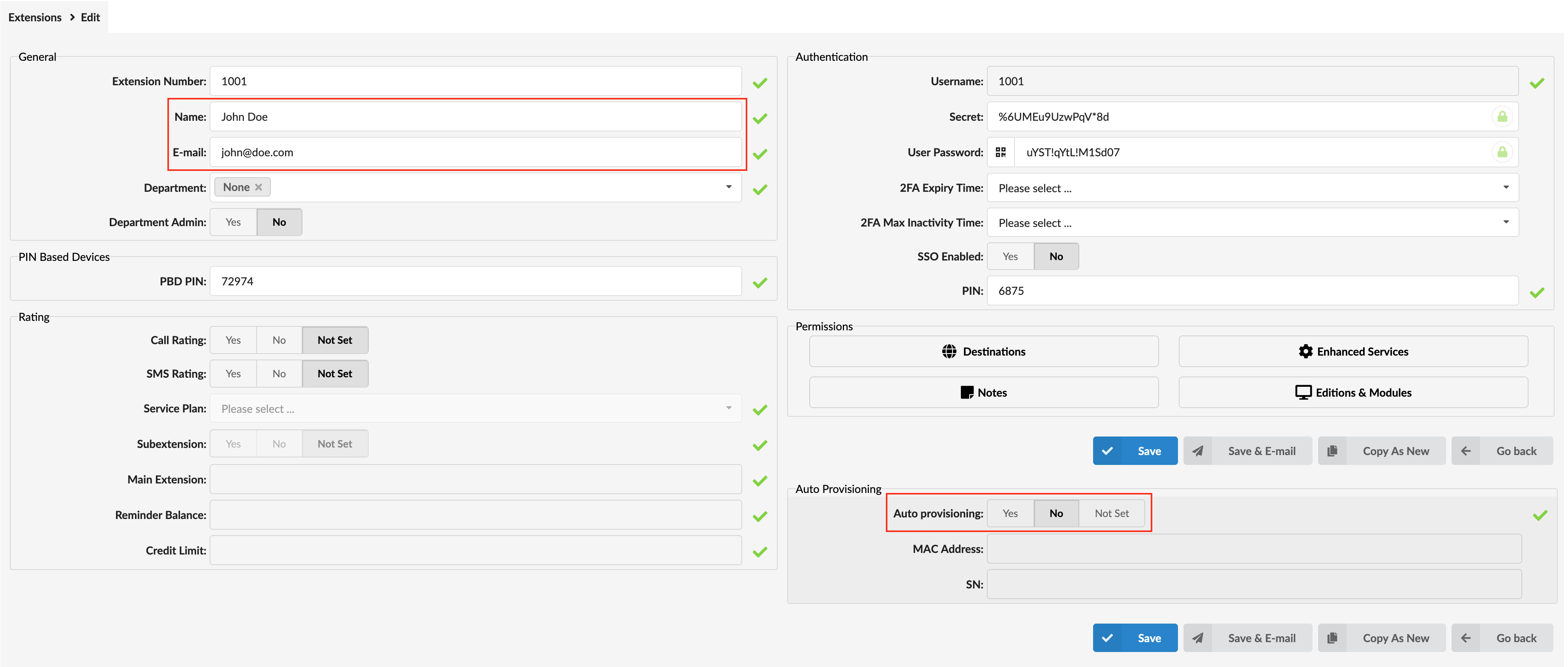
Enter values into the required field text boxes.
REQUIRED FIELDS:
- Name
Enter a name for the Extension being created. Example: John Smith.
Enter the e-mail address associated with this Extension. This e-mail address will receive all system notification messages. Example: john.smith@bicomsystems.com
- Department
Define the Department to which the Extension belongs. Example: Sales.
- Click the Save button.
¶ Registering a Device
This section describes how to register a Yealink device using Hostname or IP Address or DNS SRV.
The following topics are covered:
- Hostname or IP Address
- DNS SRV
¶ Hostname or IP Address
Log in to the phone's web administration interface
- Open a new browser window and enter the phone's IP address in order to access the phone's web administration interface login screen. Example:
http://192.168.1.22/ - Log in to the phone's web administration interface with the username and password. Please note that the factory default login details are as follows: username is admin and password is admin.
- Click Handset & Account.
- Enter or set the following details into the respective fields.
REQUIRED FIELDS:
- Account Active
Make sure the On radio box is selected.
- Register Name
PBXware Extension number. Example: 1003
- User Name
Usually the same number as the Phone Number.
- Password
The Secret of the Extension as received in the e-mail associated with this Extension. Example: _%Z4M3*Ts9y7. A password is generated automatically for each newly created Extension.
- Sip Server
Enter the Hostname or IP Address of PBXware.
- Example of a Hostname: voip.bicomsystems.com
- Example of an IP Address: 192.168.1.10
- Click Confirm.
- You will have to wait some time for the device to reboot. If everything is done as described above, you should have successfully registered your device to PBXware.
Dial *123 to verify the registration.
¶ DNS SRV
This section describes how to use a DNS SRV record which specifies the location of PBXware. NOTE: The DNS Server needs to be configured correctly for this to work. Bicom Systems can provide a service to set this up for you.
Log in to the phone's web administration interface
- Open a new browser window and enter the phone's IP address in order to access the phone's web administration interface login screen. Example:
http://192.168.1.22/ - Log in to the phone's web administration interface with the username and password. Please note that the factory default login details are as follows: username is admin and password is admin.
- Click Handset & Account.
- Enter or set the following details into the respective fields.
REQUIRED FIELDS:
- Account Active
Make sure the On radio box is selected.
- Register Name
PBXware Extension number. Example: 1003
- User Name
Usually the same number as the Phone Number.
- Password
The Secret of the Extension as received in the e-mail associated with this Extension. Example: _%Z4M3*Ts9y7. A password is generated automatically for each newly created Extension.
- Sip Server
In the Sip Server field, enter the Hostname.
- Example of a Hostname: bicomsystems.com
- Make sure that you replace Hostname from this example with the Hostname of your PBXware.
- Make sure that the DNS server is configured to automatically route a registration request to PBXware which is actually under another domain name. (Example:
newbicomsystems.com) - Transport
Select DNS SRV from the drop-down menu.
- Click Confirm.
- You will have to wait some time for a device to reboot. If everything is done as described above, you should have successfully registered your device to PBXware.
Dial *123 to verify the registration.
¶ Registering a Handset
This section describes how to register the handset.
NOTE: Before the registration, please make sure that the base station is in the registration mode, and the phone displays "Unregistered!".
- Press the 'Reg' soft key to register the handset
- After the handset is registered successfully, the following details will be displayed: “Handset Subscribed” and “Base NO. (The last four characters of the connected Base’s MAC address)”.
TIP:
- Press OK > Register Handset
- Select the desired base to register the handset
After the DECT base is found, users will be prompted to enter a default pin code.
NOTE: The default pin code is 0000.
If everything is done as described above, the handset should be registered and synchronized.
¶ Auto Provisioning
This section describes how to set UAD settings, create the PBXware Extension, and register the device using DHCP or Static IP address.
The following topics are covered:
- UAD Settings
- Creating an Extension
- Registering a Device
¶ UAD Settings
1. Log in to PBXware's web administration interface
- Open a new browser window and enter the PBXware IP address to access the administration login screen. Example:
http://192.168.1.10/ - Log in to PBXware with your e-mail address and password.
2. UAD settings
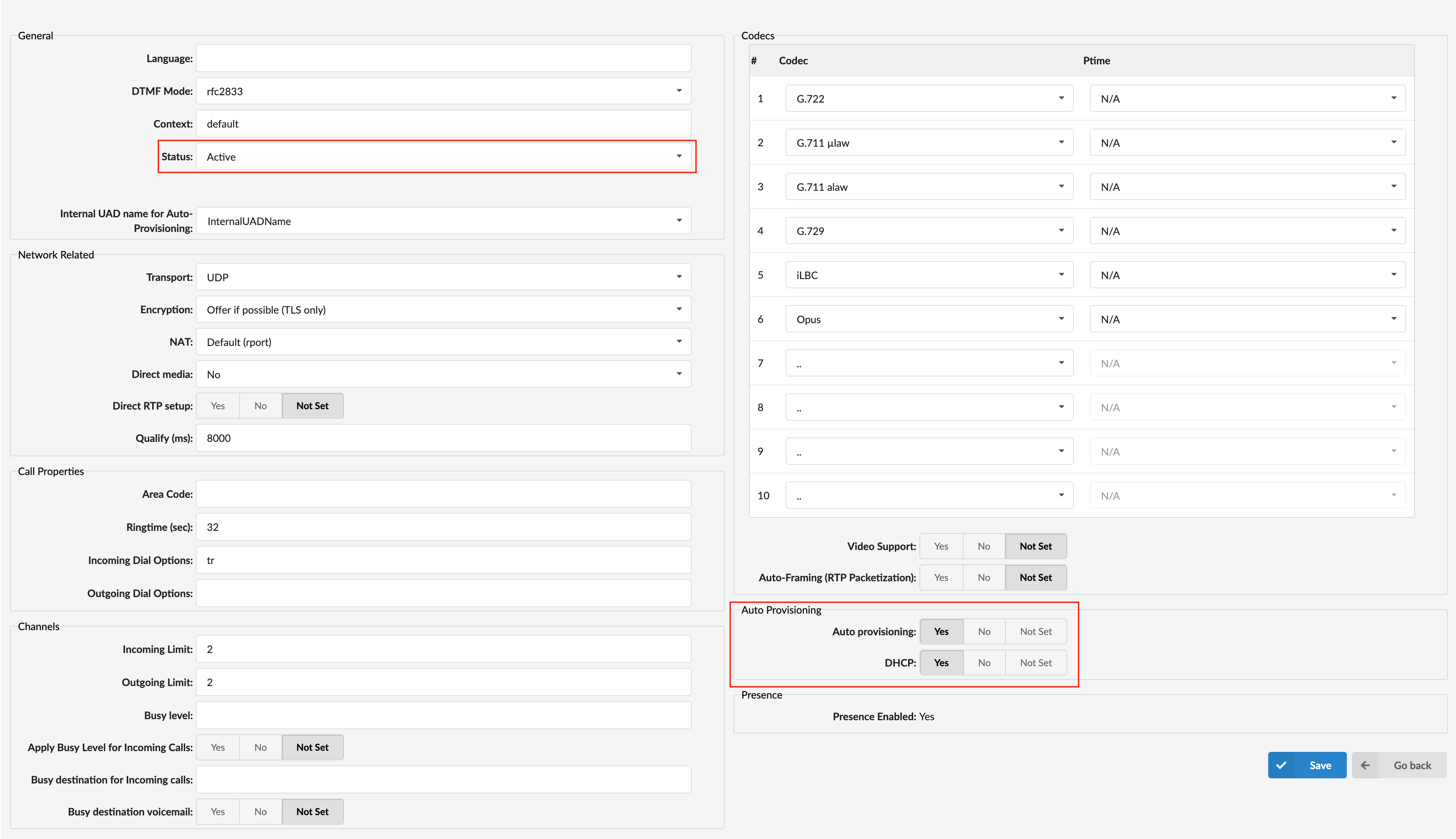
- Navigate to Settings > UAD.
- Ensure that the Yealink W75 UAD is enabled. To check the UAD status, click the Edit icon corresponding to the Yealink W75 phone.
- Verify that Status is set to Active, Auto provisioning is set to Yes, and DHCP is set to Yes.
- Click the Save button.
¶ Creating an Extension
1. Add Extension
-
Navigate to Extensions, then click Add Extension.
-
The standard options window will open.
-
Select the Yealink W75 phone model from the UAD dropdown menu.
-
Select the Location: Local or Remote.
- Local is for all Extensions registered on the LAN
- Remote is for all Extensions registered from remote networks, WAN, Internet etc.
-
Click the Next step button.
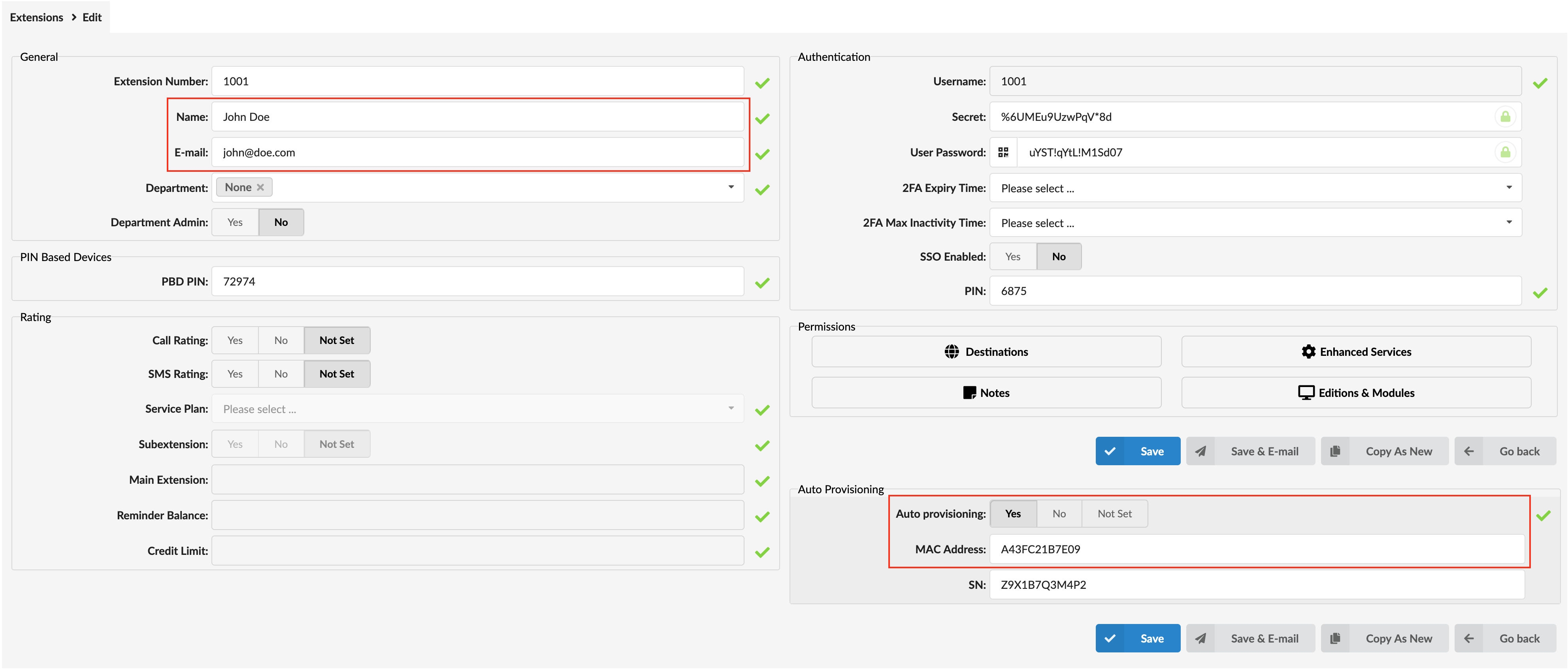
2. Extension Values
Enter values into the required field text boxes.
REQUIRED FIELDS:
- Name
Enter a name for the Extension being created. Example: John Smith.
Enter the e-mail address associated with this Extension. This e-mail address will receive all system notification messages. Example: john.smith@bicomsystems.com
- Auto Provisioning
Set to Yes.
- MAC Address
Enter the Yealink device's MAC address. Example: 001565FF1536. The MAC address can be found at the back of the device.
- Click the Save button.
¶ Registering a Device
This section describes how to register a Yealink device using TFTP, HTTP & HTTPS.
¶ TFTP or HTTP & HTTPS
- Open a new browser window and enter the device's IP address, e.g.
http://192.168.1.22. - Enter username and password and press the Confirm button. NOTE: The factory default login details are as follows: username is admin and password is admin.
- Click the Settings tab.
- Click the Auto Provision link on the left-hand navigation menu.
- Choose what server type you intend to use: HTTP, HTTPS, and Trivial FTP. NOTE: Our recommendation is to use HTTP.
If you choose to use HTTP or HTTPS server type, enter http:// or https:// followed by Hostname or IP Address, and then followed by /prov.
Example of a Hostname using HTTP: http://abc.bicomsystems.com/prov
Example of a Hostname using HTTPS: https://abc.bicomsystems.com/prov
Example of an IP Address using HTTP: http://192.168.1.10/prov
Example of an IP Address using HTTPS: https://192.168.1.10/prov
- Enter the Auto Provisioning username and password into the User Name and Password fields.
If you choose to use TFTP server type, enter tftp:// followed by Hostname or IP Address
Example of a Hostname: tftp://voip.bicomsystems.com
Example of an IP Address: tftp://192.168.1.10
- Click the Autoprovision Now button.
- A pop-up window will show up.
- Click the OK button to confirm the action.
- You will have to wait for a couple of seconds for the configuration to be updated. NOTE: Do not power off your device.
- The auto-provisioning process will start during the device's reboot process. The device will pick up an appropriate configuration file from PBXware. If everything is done as described above, you should have successfully registered your device to PBXware.
Dial *123 to verify registration.
¶ Using TLS
NOTE: If you choose to use HTTPS as a protocol for registering your device, please do the following:
- Open a new browser window and enter your device's IP address, e.g.
http://192.168.1.22. - Enter username and password and press the Confirm button. NOTE: The factory default login details are as follows: username is admin and password is admin.
- Click the Security tab and go to Trusted certificates and disable the Only Accept Trusted Certificates option.
¶ Additional Configuration Template
If you want to include some additional UAD configuration for Yealink W75, just add fields to User Agent General Auto Provisioning Template in Settings -> UAD -> Yealink W75 menu, or add them directly to the Extension in UAD Auto Provisioning Template section.