¶ Introduction
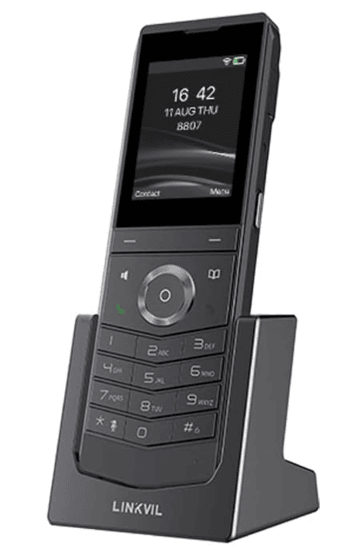
This Configuration Guide is written as general guide on how to configure the Linkvil W611W phone model to work with PBXware v7.5.0.
¶ Requirements
¶ Identifying the Phone Model
To begin and successfully complete the registration process for your Linkvil W611W phone, you need to identify the specific phone model you are setting up.
Each Fanvil phone has specific model information located on its back that you should check. While different phone models may share similar requirements and installation procedures, some models can have distinct differences. Failing to identify your phone's exact model could lead to issues during setup and prevent successful installation.
¶ Phone Firmware
- Make sure that your phone is loaded with appropriate firmware version 2.14.2.25.
- To find out the firmware version of your Fanvil W611W phone model open a new browser window and enter your phone's IP address in order to access the phone web administration interface login screen. Example:
http://192.168.1.22. - Log in to phone web administration interface with your username and password. Please note, factory default login details are username: admin and password: admin.
- Go to Information -> System tab in left menu.
- Software field contains information about firmware version.
¶ DHCP Server
Fully configured and operational DHCP server.
¶ PBXware Version
PBXware version 7.5.0
In order to find out the PBXware version:
- Log in to PBXware
- Navigate to Settings: About.
On the top of About page is a code similar to this one PBXware Edition: Multi-Tenant, Release: 7.5 (387597b7), Running: 18.15.0.-gc-b47edc45, PBXware Proxy v7.5 (62b7bcd), API: 7.4, libmemcached version: 1.0.18, where Release denotes the exact version of your PBXware.
¶ Installation
This chapter describes how to install and connect the phone to the electrical power and data network as well as how to apply factory settings.
The following topics are covered:
- Power Adapter and Network Settings
- Factory Settings
¶ Power Adapter and Network Settings
Connect the Network and Power
- Connect the DC plug on the power adapter to the DC port on the phone and connect the other end of the power adapter into an electrical power outlet.
- Connect the Ethernet cable to the Ethernet port on the phone and connect the other end to your router or switch.
¶ Find the Phone's IP Address
To find the IP address of your device, please follow these steps:
- Press the Menu softkey.
- Go to Status and select Network.
- Under the IP field, the IP address of the device will be displayed.
¶ Reset to Factory Settings
This step is not required for brand new out-of-the-box phones, however, if the phone has been already used then it is a must.
- Open a new browser window and enter your phone's IP address in order to access the phone web administration interface login screen. Example:
http://192.168.1.22. - Log in to phone web administration interface with your username and password. Please note, factory default login details are:
- Username: admin
- Password: admin
- Navigate to the Configurations tab.
- Go to the Reset Phone section.
- Click on the Reset button in order to reset the phone to factory settings. The device will reset and reboot automatically.
- Allow some time for the device to complete the reboot process.
NOTE: Do not unplug or remove power from the device while the factory reset process is in progress.
¶ Registering the Phone
This chapter describes how to register the phone using:
- Manual Configuration
- Auto Provisioning
¶ Manual Configuration
This chapter provides step-by-step instructions on configuring UAD settings, creating PBXware extension, and registering the phone.
The following topics are covered:
- UAD Settings
- Creating an Extension
- Registering Device
¶ UAD Settings
1. Log in to PBXware's web administration interface
- Open a new browser window and enter the PBXware IP address to access the administration login screen. Example:
http://192.168.1.10 - Log in to PBXware with your e-mail address and password.
2. UAD settings
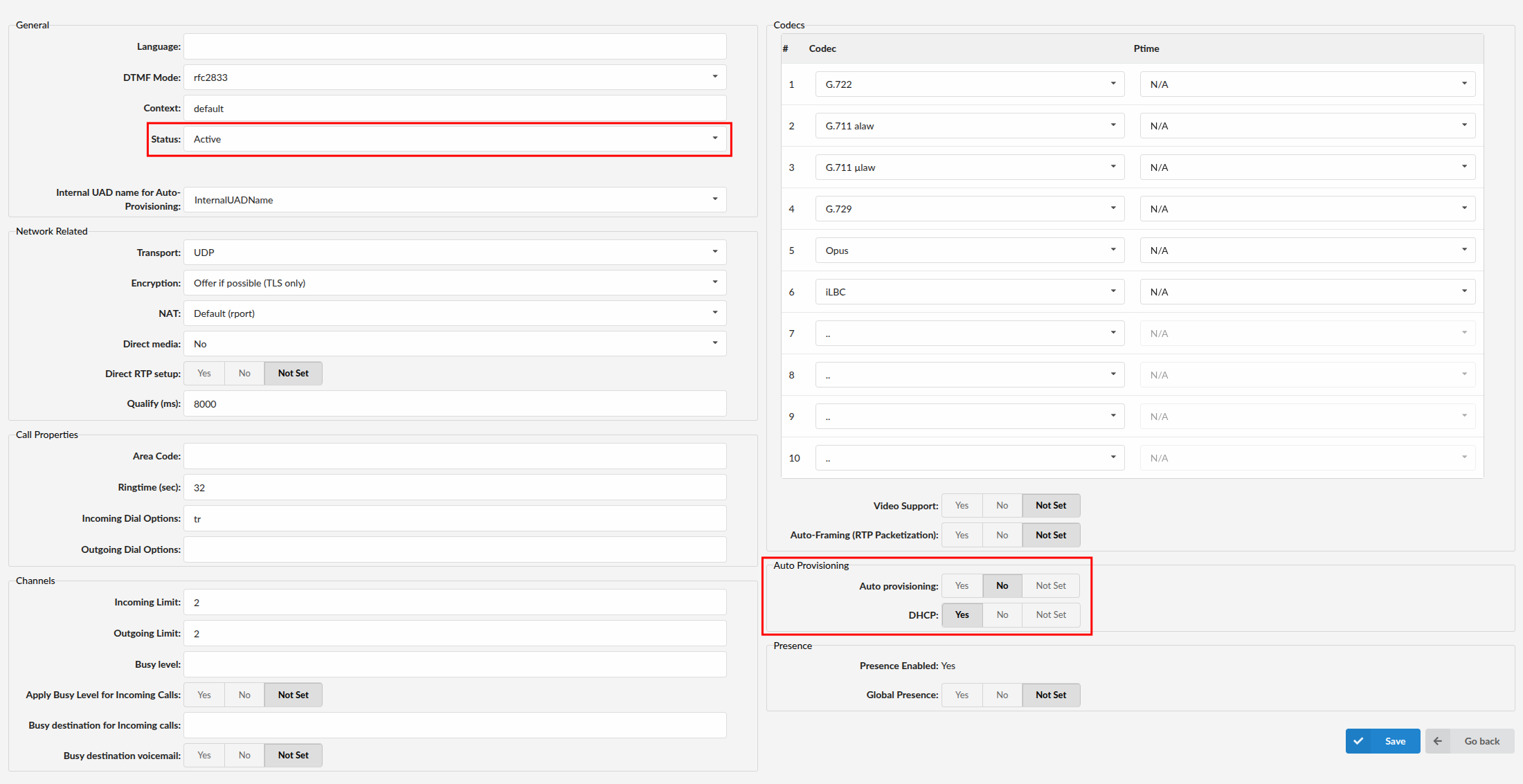
- Navigate to Settings > UAD.
- Ensure that the Linkvil W611W UAD is enabled. To check the UAD status, click the Edit icon corresponding to the Linkvil W611W phone.
- Verify that Status is set to Active, Auto provisioning is set to No, and DHCP is set to Yes.
- Click the Save button.
¶ Creating an Extension
1. Add Extension
-
Navigate to Extensions, then click Add Extension.
-
The standard options window will open.
-
Select the Linkvil W611W phone model from the UAD dropdown menu.
-
Select the Location: Local or Remote.
- Local is for all Extensions registered on the LAN
- Remote is for all Extensions registered from remote networks, WAN, Internet etc.
-
Click the Next step button.
2. Extension Values
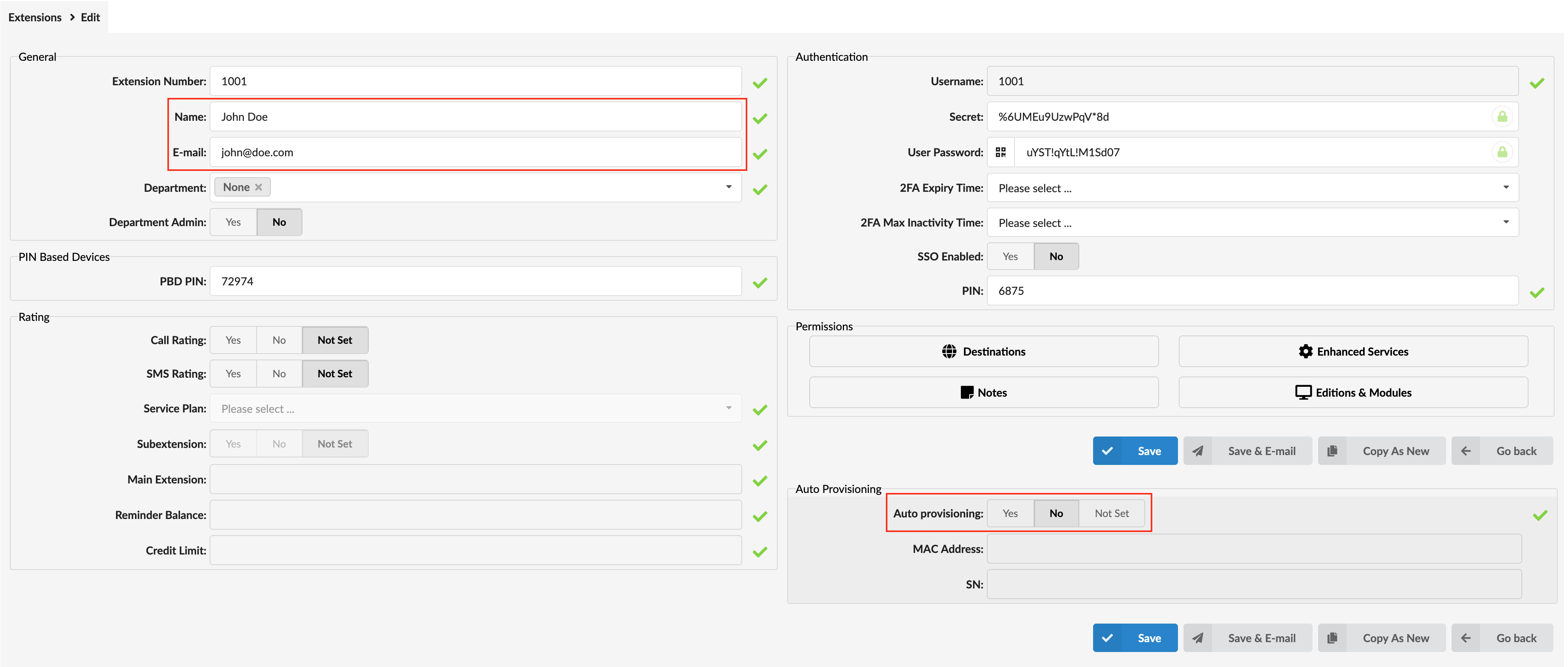
Enter values into the required field text boxes.
REQUIRED FIELDS:
-
Name
Enter the name for the extension being created. Example: John Smith
-
E-mail
Enter the e-mail address associated with this extension. This e-mail address will receive all system notification messages. Example:
john.smith@bicomsystems.com -
Click on the Save button.
¶ Registering the Phone
This chapter describes how to register Linkvil W611W phone model using Hostname or IP Address.
¶ Hostname or IP Address
- Open a new browser window and enter your phone's IP address in order to access the phone web administration interface login screen. Example:
http://192.168.1.22 - Log in to phone web administration interface with your username and password. Please note, factory default login details are:
- Username: admin
- Password: admin
- Click on Line in the left hand navigation menu
- Enter or set the following details into the required fields.
REQUIRED FIELDS:
-
Activate
Make sure the Activate check box is selected.
-
Username
PBXware extension number. Example: 1003
-
Display name
Enter the name to be displayed on the device.
-
Authentication User
Usually the same number as the Username.
-
Authentication Password
The Secret of the extension as received in the e-mail associated with this extension. Example: _%Z4M3*Ts9y7. A password is generated automatically for each newly created extension.
-
Server Address
Enter the Hostname or IP Address of the PBXware:
- Example for Hostname:
voip.bicomsystems.com - Example for IP Address:
192.168.1.10
- Example for Hostname:
-
Server Port
Enter 5060 Port.
-
Click on the Apply button.
If everything is done as above described, you should have successfully registered your phone to PBXware.
Dial *123 to verify registration.
¶ Auto Provisioning
This chapter provides step-by-step instructions on configuring UAD settings, creating PBXware extension, and registering the phone.
The following topics are covered:
- UAD Settings
- Creating an Extension
- Registering the Phone
¶ UAD Settings
1. Log in to PBXware's web administration interface
- Open a new browser window and enter the PBXware IP address to access the administration login screen. Example:
http://192.168.1.10 - Log in to PBXware with your e-mail address and password.
2. UAD settings
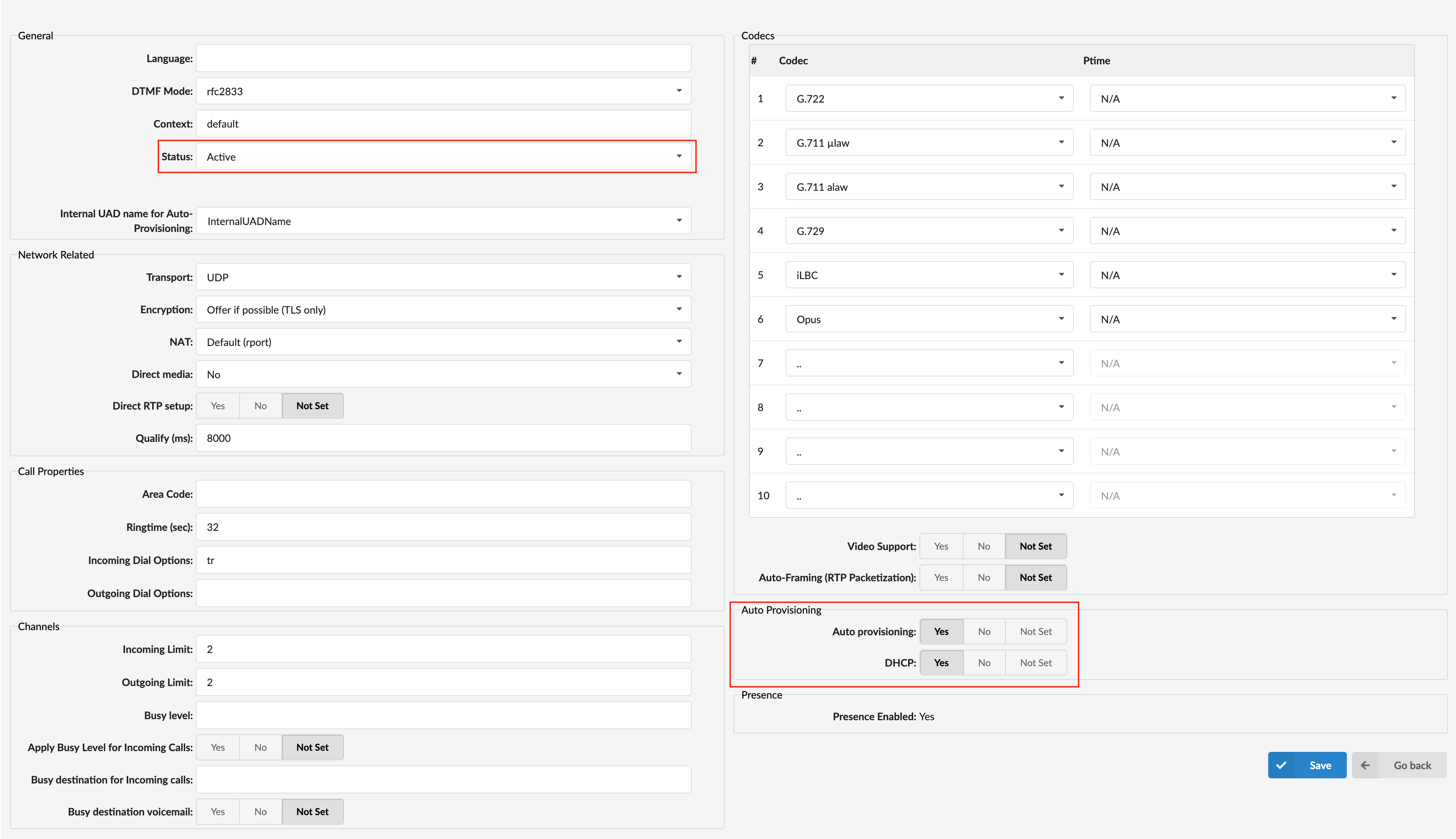
- Navigate to Settings > UAD.
- Ensure that the Linkvil W611W UAD is enabled. To check the UAD status, click the Edit icon corresponding to the Linkvil W611W phone.
- Verify that Status is set to Active, Auto provisioning is set to Yes, and DHCP is set to Yes.
- Click the Save button.
¶ Creating an Extension
1. Add Extension
-
Navigate to Extensions, then click Add Extension.
-
The standard options window will open.
-
Select the Linkvil W611W phone model from the UAD dropdown menu.
-
Select the Location: Local or Remote.
- Local is for all Extensions registered on the LAN
- Remote is for all Extensions registered from remote networks, WAN, Internet etc.
-
Click the Next step button.
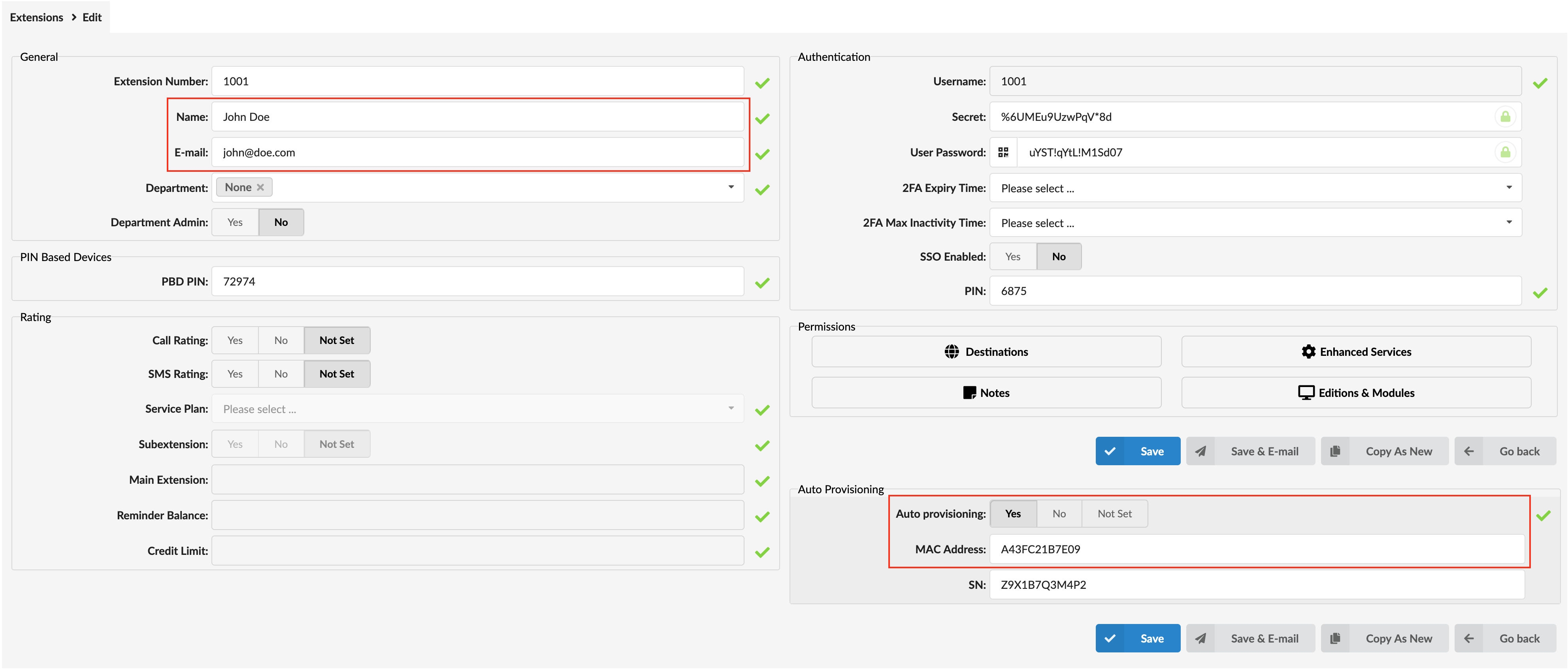
2. Extension Values
Enter values into the required field text boxes.
REQUIRED FIELDS:
-
Name
Enter the name for the extension being created. Example: John Smith
-
E-mail
Enter the e-mail address associated with this extension. This e-mail address will receive all system notification messages. Example:
john.smith@bicomsystems.com -
Auto Provisioning
Set to Yes
-
MAC Address
Enter Linkvil W611W phone MAC address. Example:
0C383E123456MAC address can be found at the back of the phone.
-
Click on the Save button.
¶ Registering the Phone
This chapter describes how to register Linkvil W611W phone using HTTP, HTTPS or TFTP.
¶ HTTP, HTTPS & TFTP
-
Open a new browser window and enter your phone's IP address, e.g.
http://192.168.1.22. -
Log in to phone web administration interface with your username and password. Please note, factory default login details are username: admin and password: admin
-
Click on Auto Provision in the navigation tab.
-
Enter Auto Provisioning username and password into Authentication Name and Authentication Password fields.
-
Make sure the Download CommonConfig enabled check box is NOT selected.
-
Go to the Static Provisioning Server section
Choose what Protocol Type you intend to use: HTTP, HTTPS or Trivial FTP. NOTE: Our recommendation is to use the HTTP.
- If you choose to use Protocol Type HTTP or HTTPS enter Hostname or IP Address, followed then by /prov.
Example for Hostname using HTTP: abc.bicomsystems.com/prov
Example for Hostname using HTTPS: abc.bicomsystems.com/prov
Example for IP Address using HTTP: 192.168.1.10/prov
Example for IP Address USING HTTPS: 192.168.1.10/prov
- If you choose to use Protocol Type TFTP enter Hostname or IP Address
Example for Hostname: voip.bicomsystems.com
Example for IP Address: 192.168.1.10
- Make sure the Update Mode is set to Update After Reboot.
- Click on Apply button.
- Click on Autoprovision now button.
- A pop up window will show up, click on OK button to confirm your action.
You'll have to wait couple of seconds for the configuration to be updated. NOTE: Do not power off your phone.
Auto provisioning process will start during phone reboot process, phone will pickup appropriate configuration file from PBXware. If everything is done as above described, you should have successfully registered your phone to PBXware. Dial *123 to verify registration.
¶ Configure BLF
This chapter describes how to configure BLF (Busy Lamp Field) for Linkvil W611W.
¶ Extension Settings
1. Log in to the PBXware web administration interface
- Open a new browser window and enter the IP address to access the PBXware web administration login page. Example:
http://192.168.1.10 - Log in to PBXware with your e-mail address and password.
2. Edit the extension
- On the Extensions page click on the edit icon corresponding to your extension.
- Click on Advanced Options button.
- Scroll down to the Auto Provisioning and Presence settings.
- Make sure Auto Provisioning is set to Yes.
- Make sure Presence is set to "Yes".
- Click on the Save button to apply the changes.
- Click on Enhanced Services.
- Click on Directory / BLF List checkbox and click on Save button in order to enable this feature.
- Click the Edit button next to Directory / BLF List.
- Enter user extension number and click on the BLF check box.
- Click on Save button.